Getting started with Prioritas
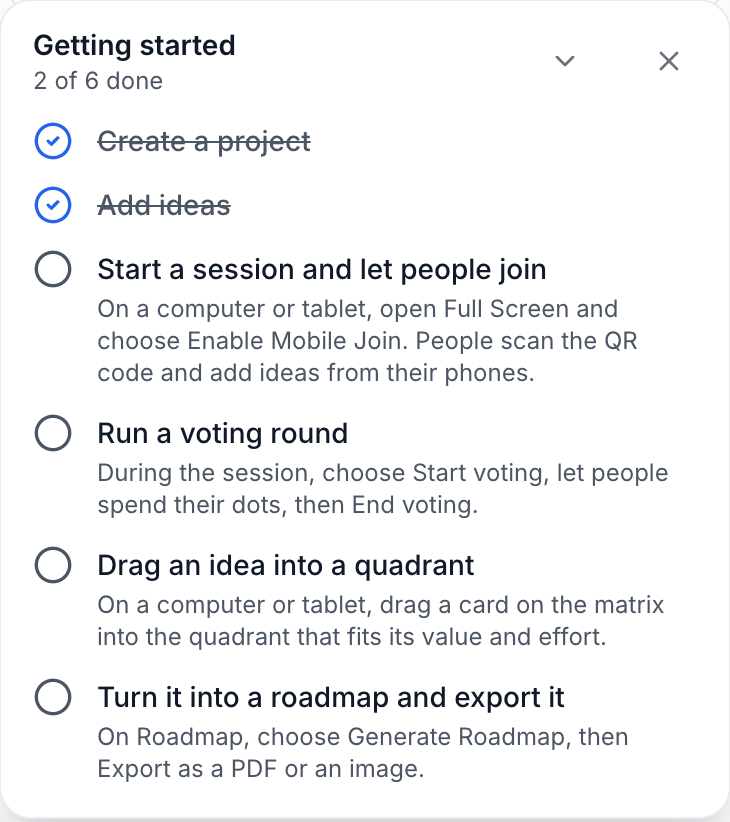
Six steps take you from an empty project to a roadmap you can export. The same steps appear in the app as a Getting started checklist, and each one ticks off when you do it.
Create a project
On Projects, choose AI Starter or New Project.
Add ideas
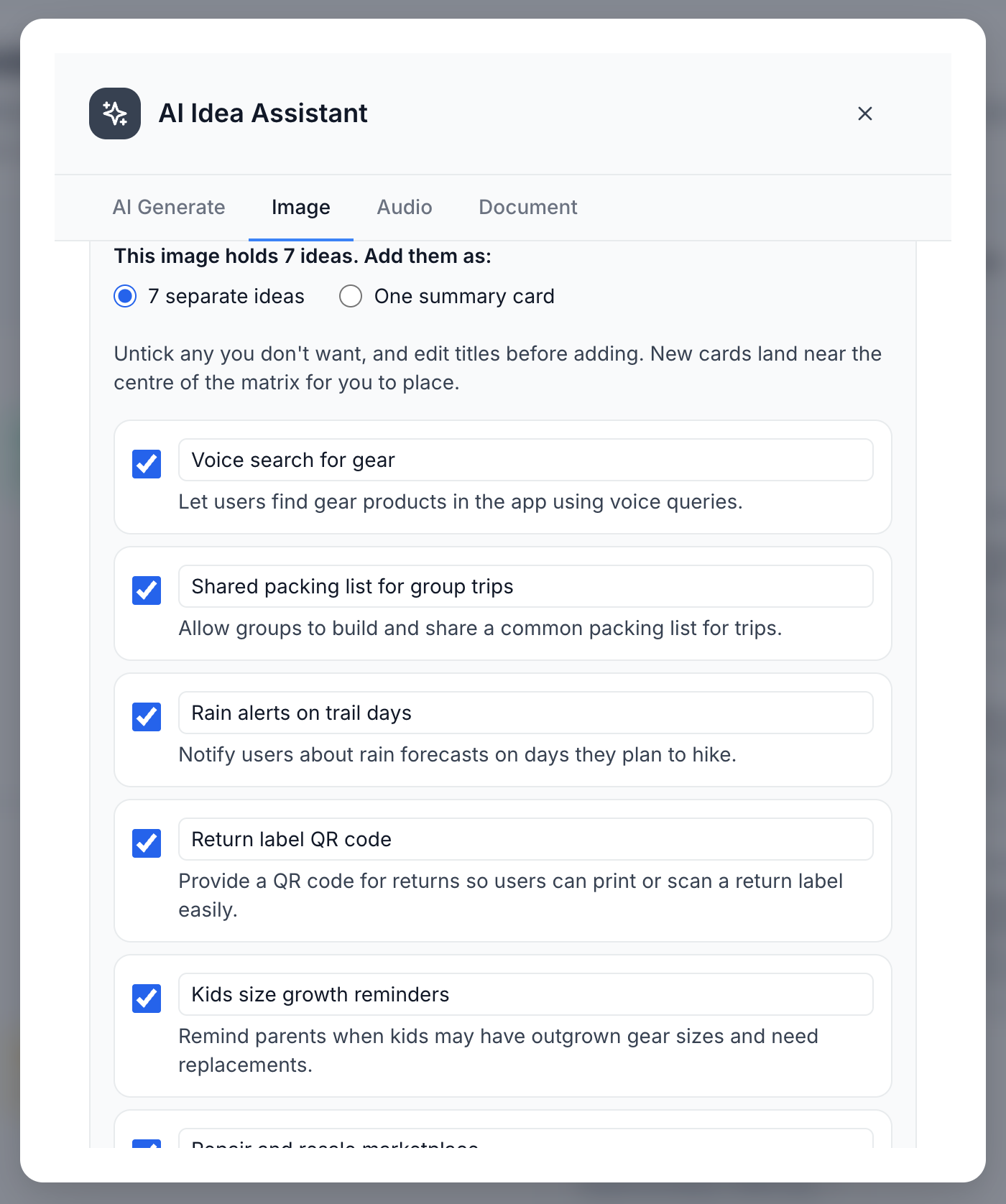
Type one with Create New Idea, or use AI Idea to draw ideas from a photo, a recording or a document. For a photo, a recording, or a text-based PDF, Word (.docx), text or Markdown file, Prioritas turns the ideas in it into cards you choose from.
Start a session and let people join
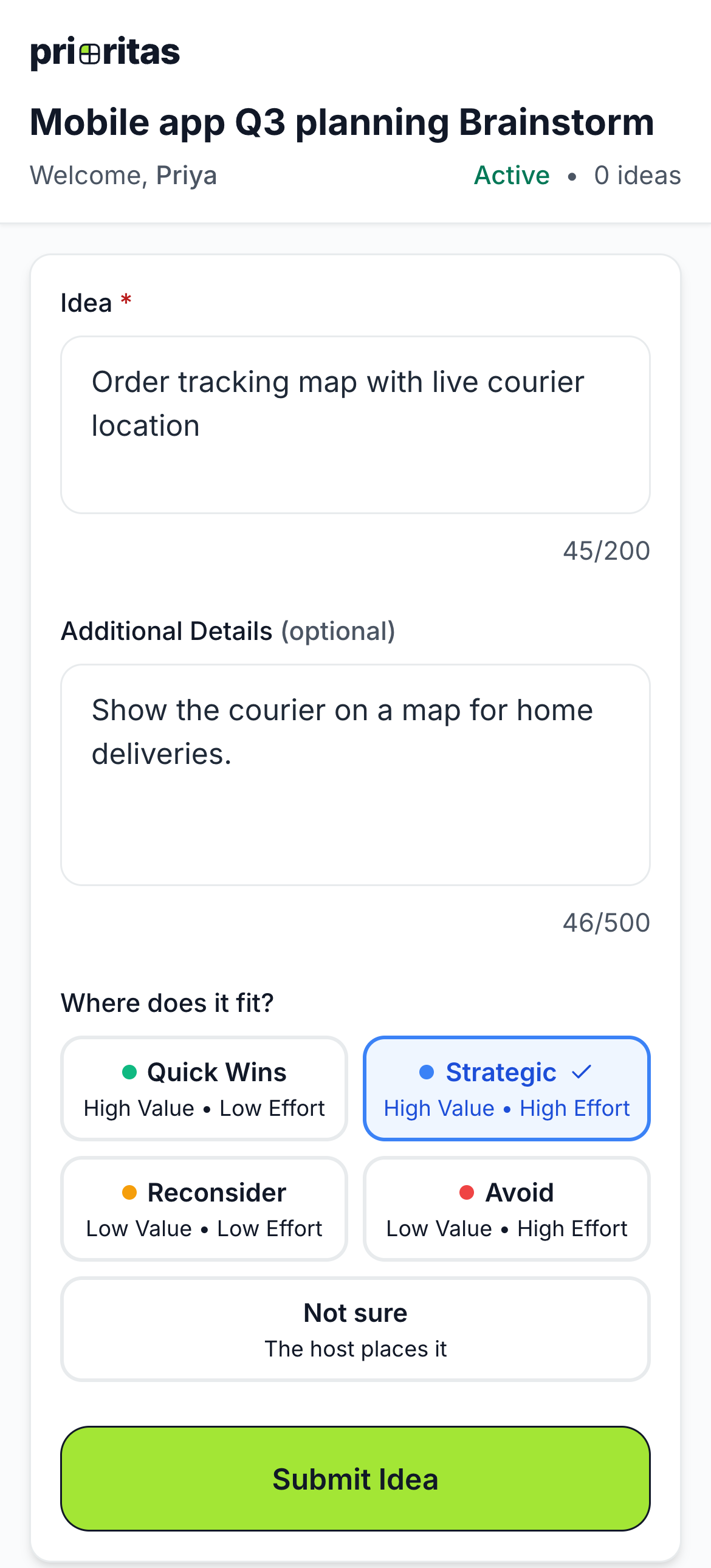
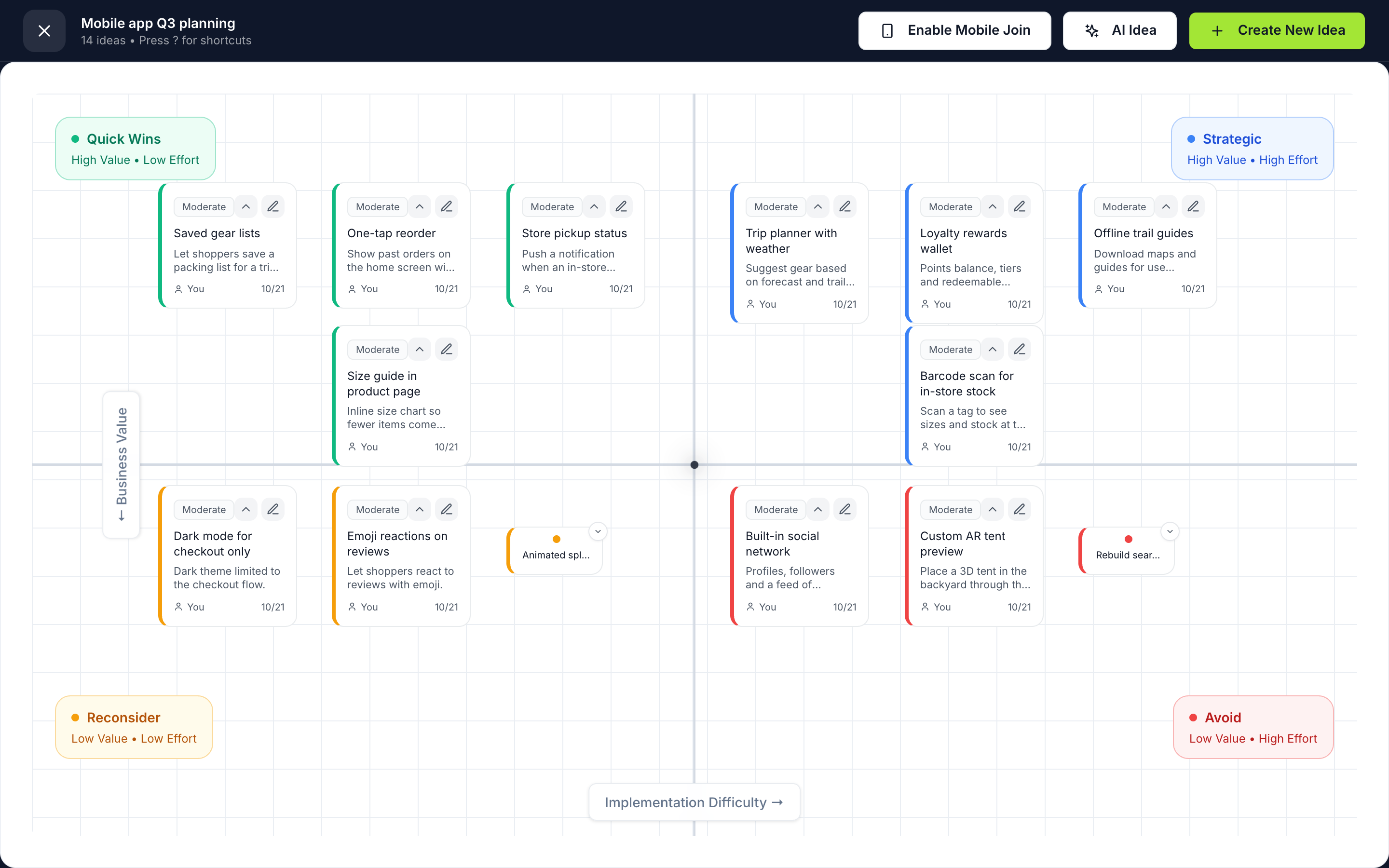
On a computer or tablet, open Full Screen and choose Enable Mobile Join. People join a session from their phone by scanning a QR code, with no account. A session takes up to 50 participants.
Run a voting round
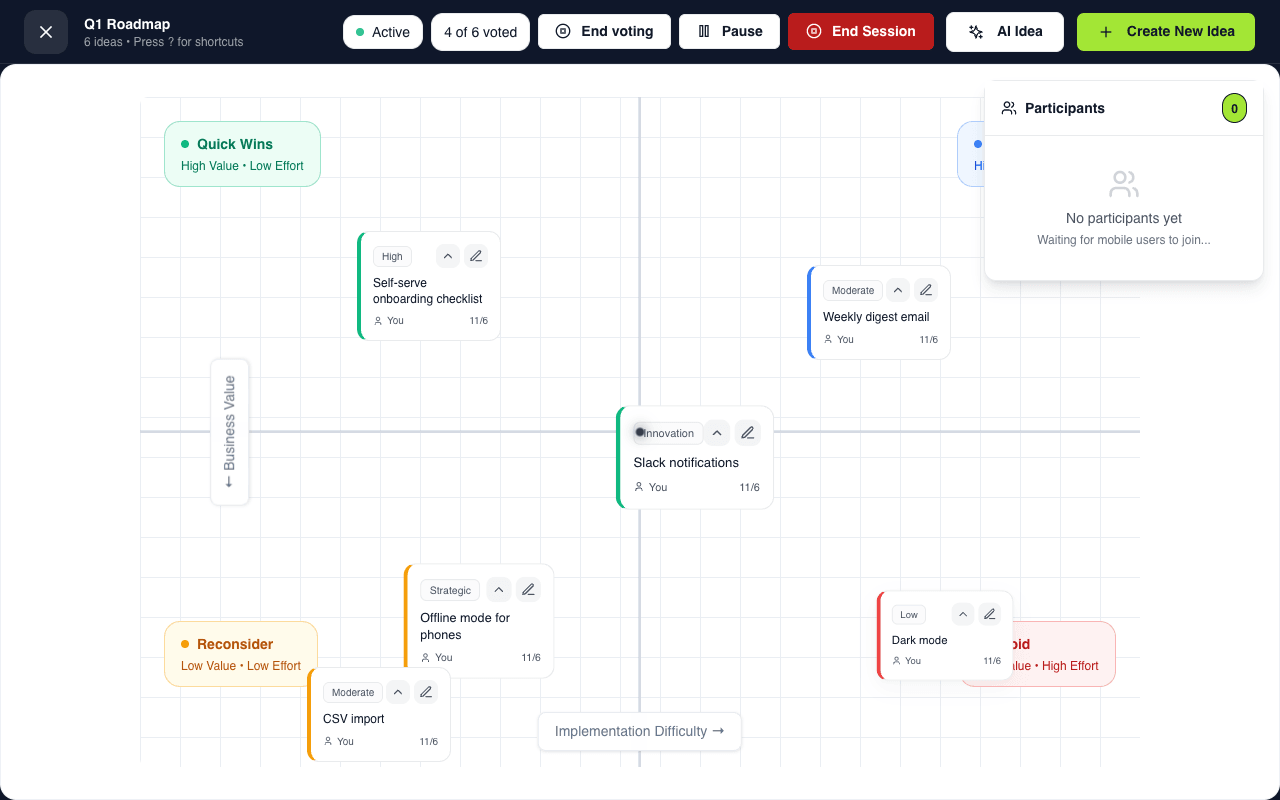
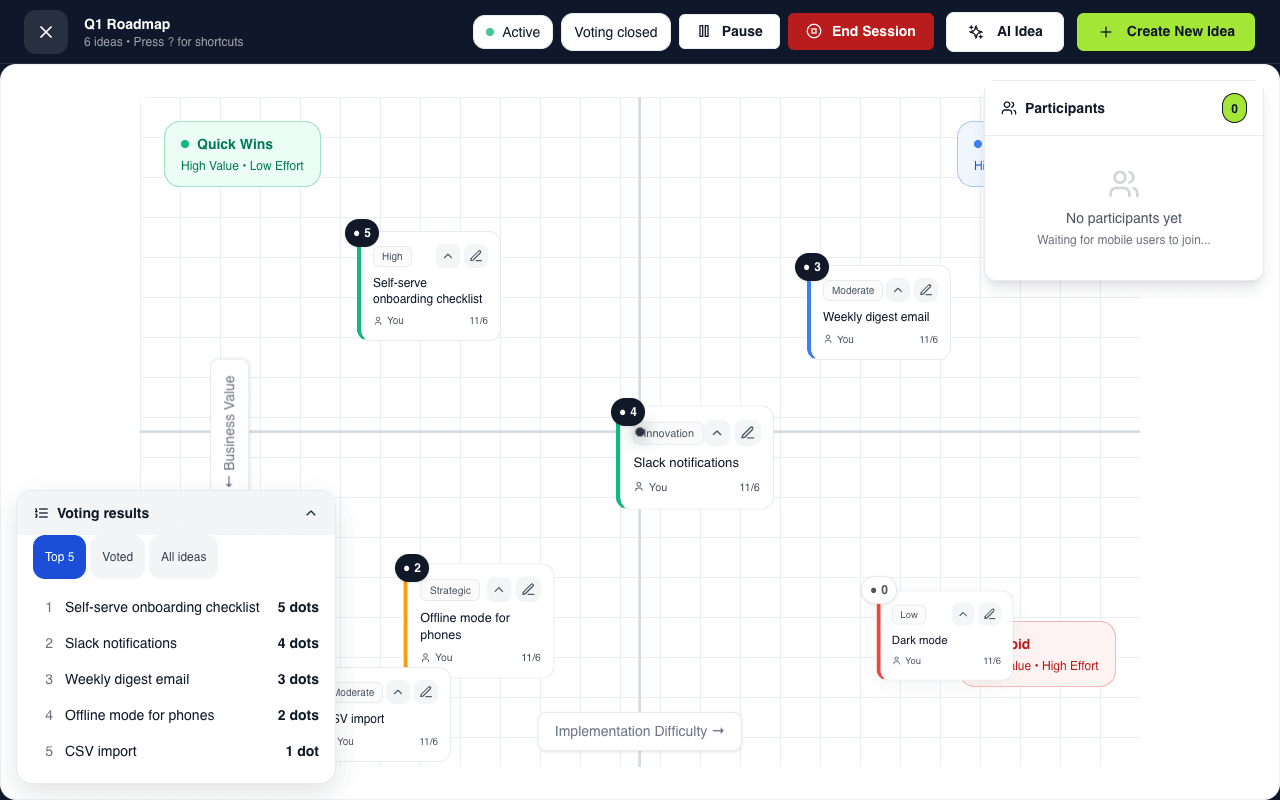
During the session, choose Start voting, let people spend their dots, then End voting. The facilitator sets 1–10 dots per person. Votes are anonymous: the board shows only a count per idea, once voting ends. A Voting results list then sorts ideas by dots, with Top 5, Voted and All ideas filters, and votes never move cards on the matrix.
Drag ideas into quadrants
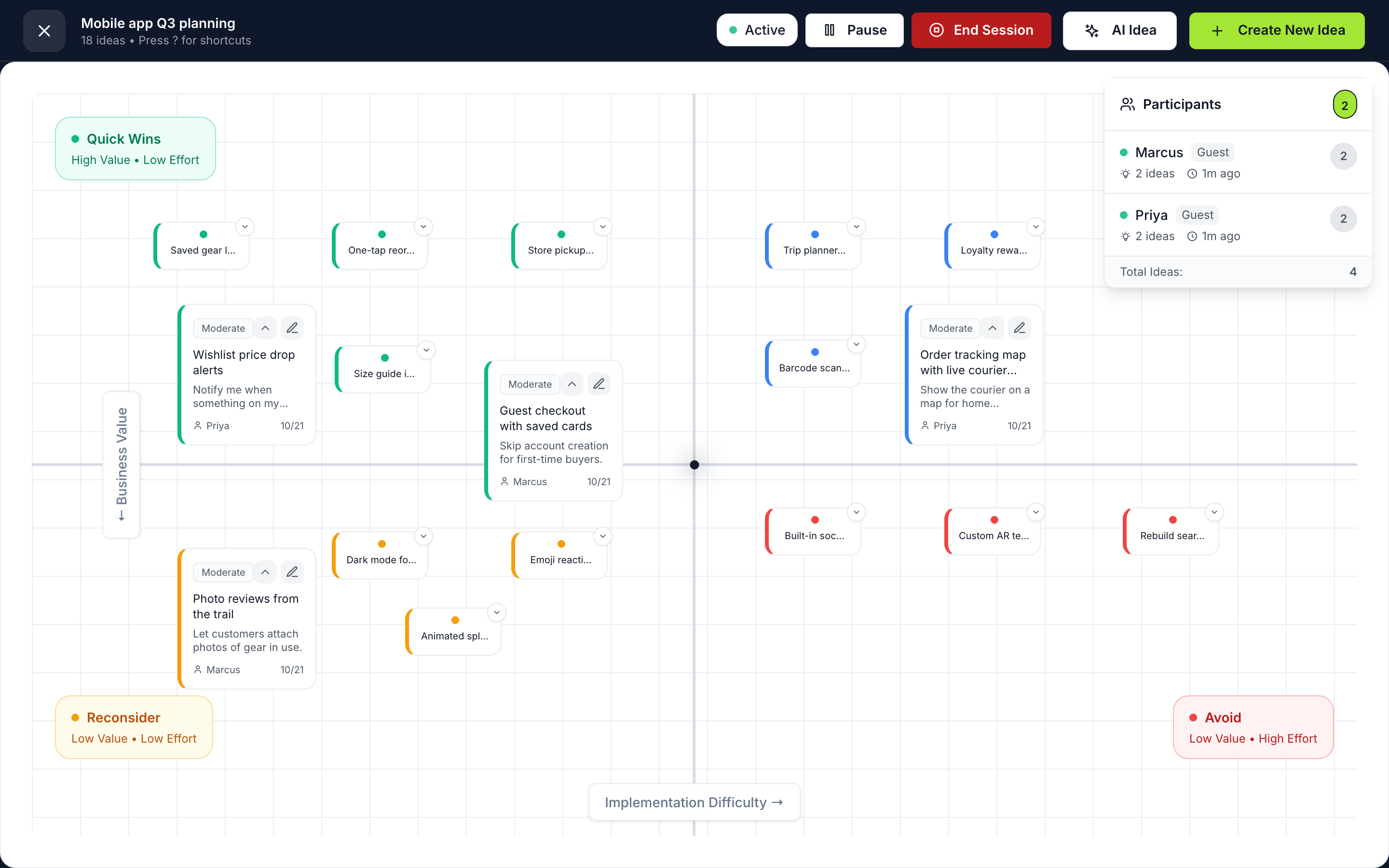
On a computer or tablet, drag a card on the matrix into the quadrant that fits its value and effort. The matrix sorts ideas into four quadrants: Quick wins, Strategic, Reconsider and Avoid.
Turn it into a roadmap and export it
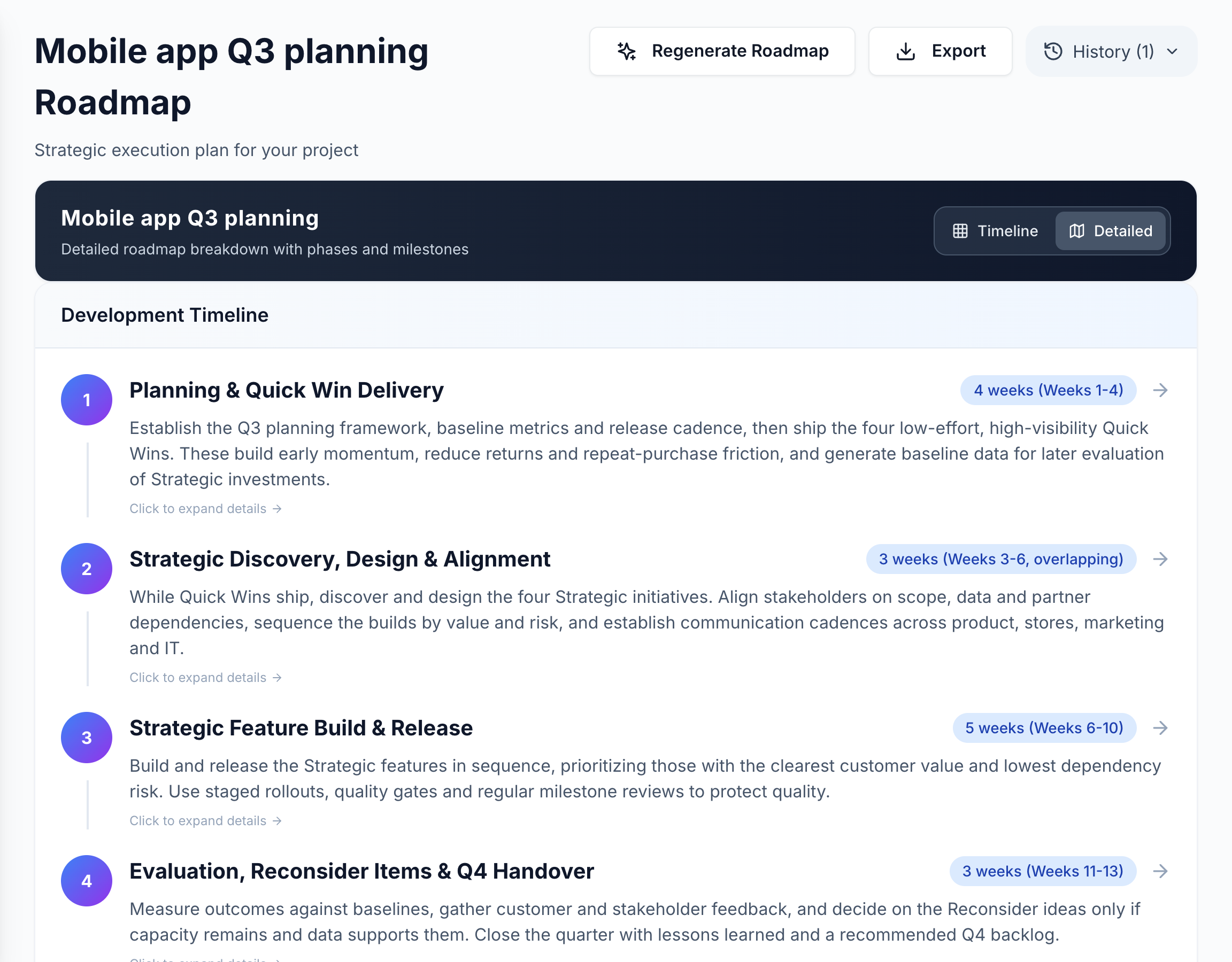
On Roadmap, choose Generate Roadmap, then Export as a PDF or an image.
For participants
People join a session by scanning its QR code and can add ideas straight away. When the facilitator starts a voting round, your phone lists the ideas: tap one to add a dot, or tap its minus to take one back. Your phone shows only your own dots.